Setup PostgreSQL in Mac OS
PostgreSQL, often referred to as Postgres, is a powerful, open-source relational database management system (RDBMS) known for its robustness, scalability, and extensibility. Originally developed in the 1980s at UC Berkeley, PostgreSQL has since evolved into one of the most reliable databases used by developers, enterprises, and organizations worldwide. It supports SQL standards advanced indexing techniques, full-text search, JSON processing, and ACID compliance, making it an excellent choice for both transactional and analytical workloads. With its strong community support and continuous development, PostgreSQL remains a top choice for modern applications that require high performance and flexibility.
Compared to commercial databases like Oracle Database, Microsoft SQL Server, and IBM Db2, PostgreSQL offers a cost-effective solution without licensing fees while still providing enterprise-level features. Unlike Oracle, which requires expensive licensing and complex tuning, PostgreSQL is highly configurable and benefits from a strong open-source community. While SQL Server is tightly integrated with Microsoft products and optimized for Windows environments, PostgreSQL is cross-platform and supports a broader range of extensions. IBM Db2, known for its robustness in large-scale enterprise applications, offers strong analytics and AI integration, but PostgreSQL competes well with its ability to handle both OLTP and OLAP workloads efficiently. With the growing support for vector similarity search (PGVector) and NoSQL-like JSONB storage, PostgreSQL continues to be a viable alternative to commercial RDMS solutions, especially for business seeking flexibility, performance, and lower operational cost.
With the rise of Retrieval-Augmented Generation (RAG) in generative AI applications, PostgreSQL is also a viable solution for handling vector-based similarity searches through the PGVector extension. PGVector allows PostgreSQL to store and query high-dimensional embeddings, making it suitable for AI-powered search, recommendation systems, and chatbots that require contextual memory retrieval. By integrating PGVector, PostgreSQL can efficiently perform k-nearest neighbor (k-NN) searches, approximate nearest neighbor, and cosine similarity calculations, which are essentials for retrieving relevan information from large document corpora.
PostgreSQL can be installed on macOS using Homebrew, which simplifies the installation and management of software packages. Below are the steps to set up PostgreSQL 15 on macOS:
Step 1: Install PostgreSQL 15
Run the following command in the Terminal:
brew install postgresql@15Once the installation is complete, you can check the installed version by running:
postgres --versionStep 3: Start PostgreSQL Service
After installation, start the PostgreSQL service:
brew services start postgresql@15To check if PostgreSQL is running, use:
brew services listIf needed, we can stop PostgreSQL with:
brew services stop postgresql@15Step 4: Access PostgreSQL
PostgreSQL provides a command-line tool called psql to interact with the database. To access the PostgreSQL shell, run
psql postgresTo display the list of existing databases, type:
\l List of databases
Name | Owner | Encoding | Collate | Ctype | ICU Locale | Locale Provider | Access privileges
-----------+----------+----------+---------+-------+------------+-----------------+-----------------------
postgres | mghifary | UTF8 | C | C | | libc |
template0 | mghifary | UTF8 | C | C | | libc | =c/mghifary +
| | | | | | | mghifary=CTc/mghifary
template1 | mghifary | UTF8 | C | C | | libc | =c/mghifary +
| | | | | | | mghifary=CTc/mghifary
(3 rows)
~
~
~
~
~
~
(END)To exit psql, type:
\qStep 5: Create a New Database and User
To create a new database, run:
CREATE DATABASE mydatabase;To create a new user with a password:
CREATE USER myuser WITH ENCRYPTED PASSWORD 'mypassword';Grant privileges to the user:
GRANT ALL PRIVILEGES ON DATABASE mydatabase TO myuser;After the new user and database are created, we can access that database with the following command:
psql -U myuser -d mydatabase;Step 6: Access Postgres DB through DBeaver
Instead of using psql, managing Postgres DBs is much easier through GUI tools. For example, we can use DBeaver, a free and open-source database management tool that supports PostgreSQL. Follow these steps to set up DBeaver and connect it to our PostgreSQL database:
- Install DBeaver
Download and install DBeaver Community Edition from the official website:
👉 https://dbeaver.io/download/
- Open DBeaver and Create a New Connection
- Launch DBeaver.
- Click “New Database Connection” (or go to File > New > Database Connection).
- From the list of database drivers, select PostgreSQL and click Next.
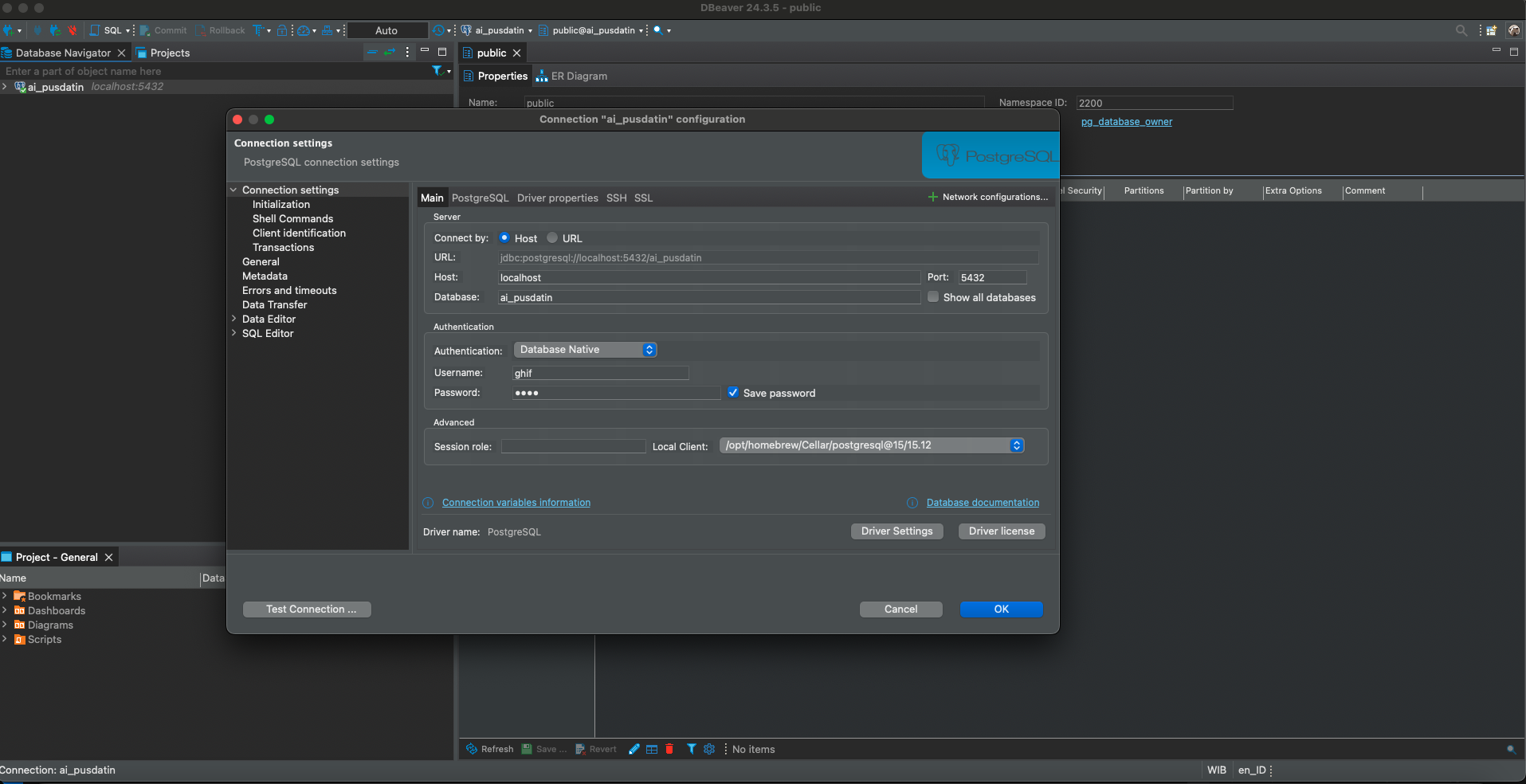
- Enter Connection Details
In the Database Connection Settings window, enter the fllowing details:
- Host: localhost (or any PostgreSQL’s remote server address)
- Port: 5432 (default PostgreSQL port)
- Database: mydatabase (replace with the actual database name)
- Username: myuser
- Password: mypassword
Click Test Connection to verify the connection is successful. If the test is successful, click Finish.
- Manage The Database
Once connected, we can:
- Browse tables, schemas, and data.
- Run SQL queries using the SQL Editor (
Cmd + Enterto execute). - Export/import data.
- Manage users and roles.
Step 7: Uninstall PostgreSQL (If Needed)
If we need to remove PostgreSQL:
brew uninstall postgresql@15Conclusion
PostgreSQL 15 is now installed and running on your macOS. We can use psql to interact with the database, create users, and manage your databases. If you’re working on development projects, consider using GUI tools like pgAdmin, DBeaver, or PostgreSQL extension in VSCode for easier database management.